Plugin settings
🔗 Original page — Source of this material
For more information about the plugins themselves, see the article.
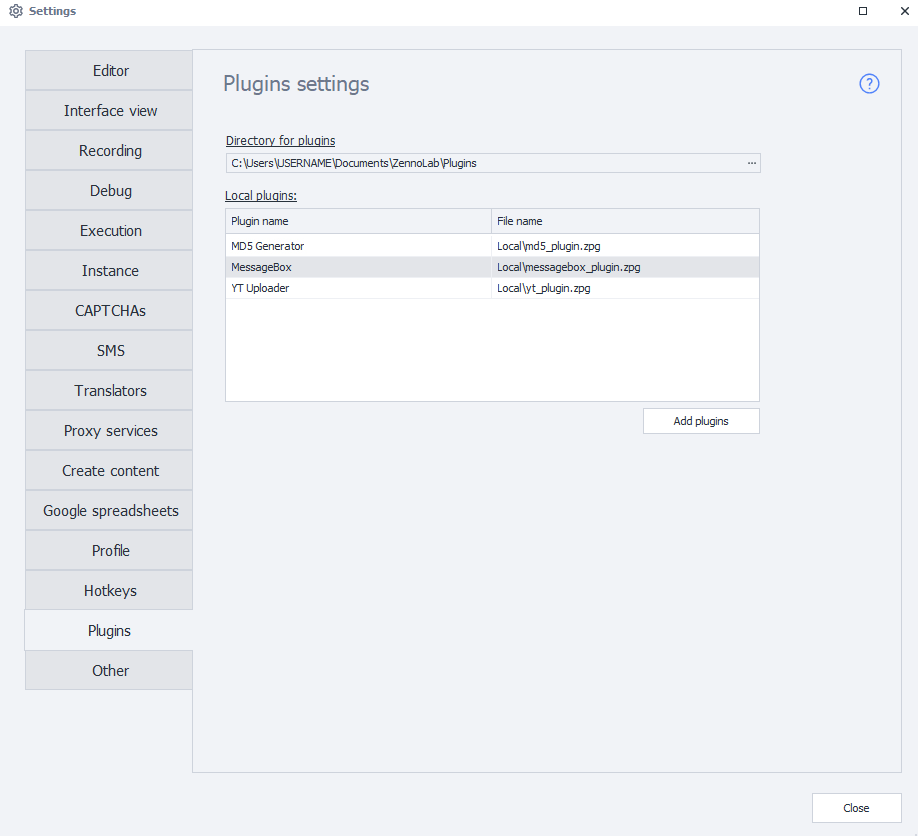
Plugin directory
Specifies the folder where installed plugins are stored.
You need to move previously installed plugins to the new folder manually.
Local plugins
This table displays all plugins installed in ProjectMaker.
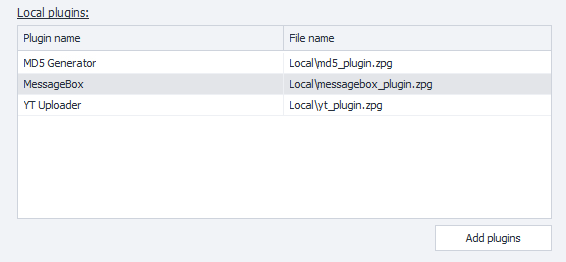
Here you can view their names, open detailed information, or delete plugins you no longer need.
Plugin name
The name of the plugin used in the ProjectMaker interface.
File name
The name of the file under which the plugin is stored on your computer. It may differ from the plugin name shown in the program.
Plugin context menu
To view the available actions, right-click the desired plugin in the table.
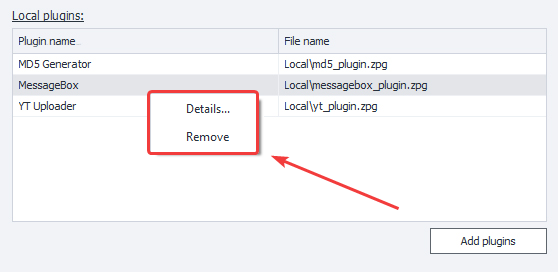
Details
Opens a window with detailed information about the selected plugin.
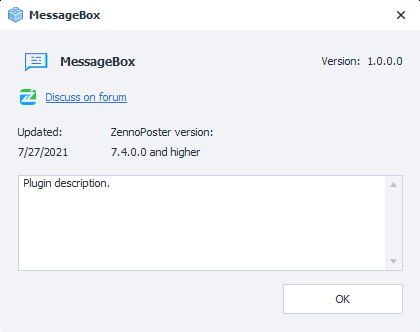
The contents of this window depend on the information provided by the developer.
If no information was provided, there will be no detailed description.
Delete
Removes the selected plugin from the program. Use this option if you no longer need the plugin.
Add plugin
To install a plugin, click the Add plugin button. A standard file selection window will open — find the file for the plugin you need and confirm your selection.
To install several plugins, select their files in the same window. The program will add them all at once.
During installation, ProjectMaker checks file names. If a file with the same name is already among the installed plugins, the new one will not be added. The program will display a window listing the plugins that could not be installed.
Successfully added plugins are ready to use right away — you don't need to restart ProjectMaker after installation.